
Event check-in software your attendees run themselves.
Attendees check in to each session from your event app. Attendance is recorded against the session, exports the same day, and stands up when your members need proof of what they attended.
Three check-in methods · Check-in and check-out · Confirmation emails
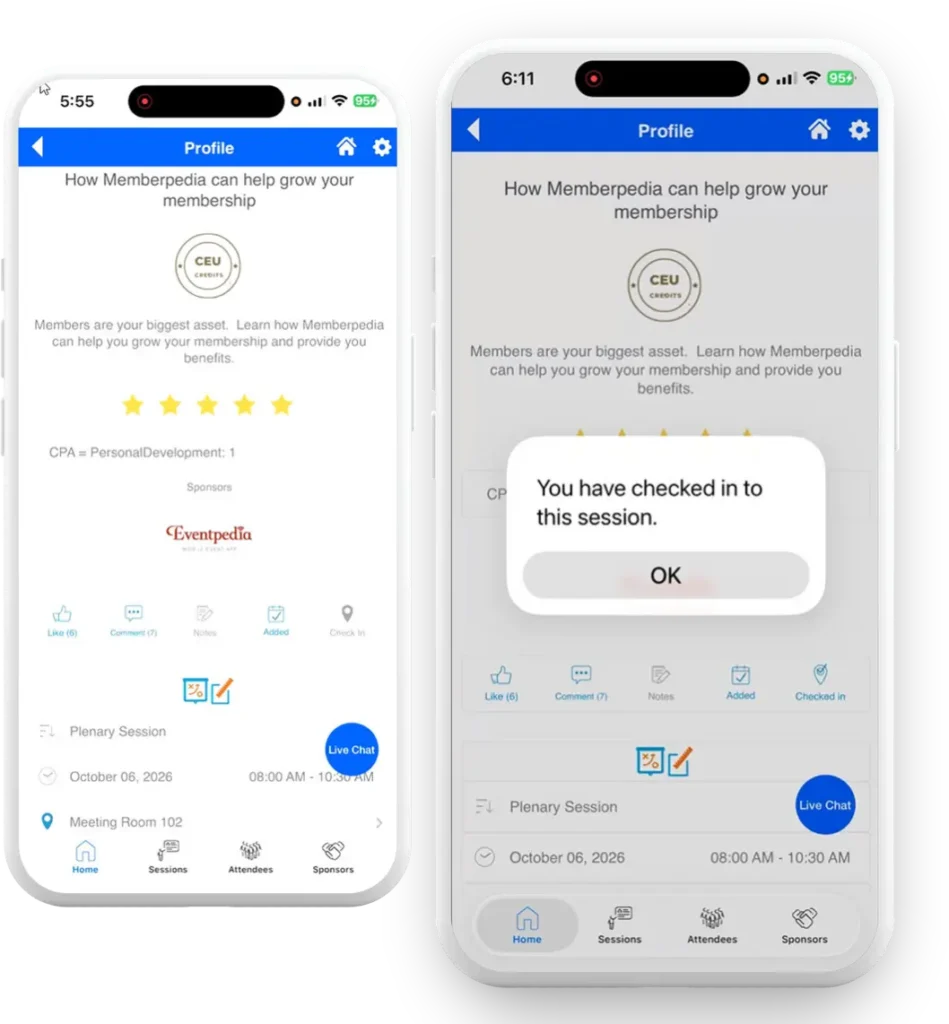
Attendance that records itself while the session runs
Most session attendance is still counted by hand. A sign-in sheet at the door, a clipboard that goes missing by the third room change, a headcount someone writes down and types up two weeks later. By the time a member asks what they attended, the answer depends on how carefully the sheet was kept.
Session check-in moves that into the app your attendees already have open. They open the session, tap check in, and the record lands against that session immediately. Nobody stands at the door. No sheet gets lost.
For an association running an education program, the value shows up after the event, not during it. The attendance list is already digital, already matched to the right session, and already exportable when your CE reporting is due.
Everything session attendance needs, set once
Configured in the Mobile Content Manager alongside the rest of your event.
Three ways to check in
Pick what suits the session. Direct check-in is one tap. QR code opens the camera so the attendee scans the session code in the room. Or set a code the speaker reads out and attendees type in.
Check in and check out
Record arrival only, or arrival and departure. You choose which sessions need both, and attendees see the wording you set for each step.
Session QR codes from MCM
Print the QR code for any session straight from the admin platform. Put it on the door, the screen, or the table card. Nothing to order and nothing to install.
Confirmation email to the attendee
Send an automatic email after check-in with the session name, date, and time. Your members get their own record without asking your team for it.
On or off per session
Turn check-in on only where it matters. Sessions without it simply do not show the button, so a keynote and a credit-bearing workshop can behave differently in the same app.
Wording you control
The button label, the message before check-in, and the message after it are all yours to write. The app speaks in your language, not a vendor’s.
Attendance data sits in the session record in the Mobile Content Manager and downloads as a list whenever you need it.
You decide how much proof each session needs
Not every session needs the same rigour. A networking breakfast and a session carrying continuing education credit are different problems, and asking attendees to scan a code at both is a good way to make them stop doing either.
Direct check-in works on trust and takes one tap. It suits sessions where you want a count and a personal record, not evidence. QR code and check-in code both require the attendee to be where the code is, which is what you want when attendance has to hold up later.
The method is set in the session settings, so you can run the light version across the program and the strict version on the sessions that carry credit. Your team sets this in the Mobile Content Manager without a developer.
Three steps from setup to attendance list
01
Configure
In session settings, choose whether you want check-in only or check-in and check-out, pick the method, and write the messages attendees will see.
02
Publish
Print the session QR codes from the Mobile Content Manager, or set a code on each session. If you want confirmation emails, approve the template once.
03
Export
Open the session record after the session, go to the checked in attendees tab, and download the list.
Your team runs all three steps. Our team sets it up with you the first time.
Attendance records your reporting can stand on
Every check-in is stored against the session it belongs to, so the list you download is already matched to the right date, the right room, and the right session title. No reconciliation afterwards.
That matters most for education program. If your members earn continuing education credit, or you report attendance to an accrediting body, a digital record taken at the moment of attendance is easier to defend than a sheet of signatures typed up later.
Sessions carrying credit show that credit on the session profile in the app, so attendees know what they are earning before they check in.
Runs alongside the rest of your event
Session check-in is one piece of the Eventpedia platform. It sits in the app your attendees already downloaded.
Mobile Event App
The branded app your attendees use for schedules, profiles, and networking.
Lead Retrieval
Exhibitors scan attendee badges and export leads without renting devices.
Attendance, engagement, and lead data all come from the same platform, so your team learns one admin system instead of four.
What sign-in sheets cost you after the session ends
Paper sign-in sheets
Session check-in in the app
Session check-in questions we get
How do attendees check in to a session?
They open the session in your event app and tap the check-in button. Depending on the method you set, that either records them straight away, opens the camera to scan the session QR code, or asks them to enter a code for that session. No badge scanning and no queue at the door.
Can we require proof that someone was actually in the room?
Yes. Use QR code check-in and print the session QR code from the Mobile Content Manager, or set a code the speaker reads out at the start. Both require the attendee to be present. Direct check-in is available for sessions where a tap is enough.
Does it record when people leave?
It can. In session settings you choose check-in only, or check-in and check-out. Attendees see separate messages for each, and both actions are stored against the session.
Can we use this for continuing education credit?
Attendance is recorded digitally against each session and exports as a list, which is what CE reporting and accrediting bodies usually ask for. Sessions carrying credit display that credit on the session profile in the app. [confirm with TJ] whether the platform calculates or issues credit totals, or whether reporting is done from the exported list.
Do attendees get a record of what they attended?
If you enable it, yes. Eventpedia sends a confirmation email after each check-in with the session name, date, and time. Your team approves the template once and the emails send automatically from then on.
Can we turn it on for some sessions and not others?
Yes. Check-in is switched on per session. Sessions with it turned off do not display the button at all, so a plenary and a credit-bearing workshop can behave differently inside the same app.
See session check-in configured around your program
Book a live walkthrough with our team. Tell us how your sessions are structured and what you report on afterwards, and we will show you how check-in would run at your event.
- A walkthrough built around your program
- Continuing education reporting covered
- Straight answers, no commitment


Smart event management for conferences and corporate meetings.
Contact Us
© 2026 EVENTPEDIA | All rights reserved